

Claude Code musings

My friend Katriina recently wrote about how women are falling behind in AI skills, based on a recent post by Elena Verna: while men are diving into AI tools and building fluency, many women are waiting for permission, perfect use cases, or the “right” moment to start.
I felt this acutely this year. Despite a computer science background, I hadn’t coded in 15 years and the volume of AI tools felt overwhelming - which ones matter? What should I learn first? Where do I even start?
So I made it intentional. I took courses on Takeoff to understand the basics, subscribed to tools, and forced myself to try things. Not ambitious projects. Small, practical problems that had been sitting in my “someday” pile.
This post walks through three projects I built with Claude Code in my first week. None required touching a line of code. Total time investment: about two hours. If you’ve been putting off learning AI tools because they feel too technical, this is your proof that you can start today.
Let me show you how accessible this actually is.
What is Claude Code?
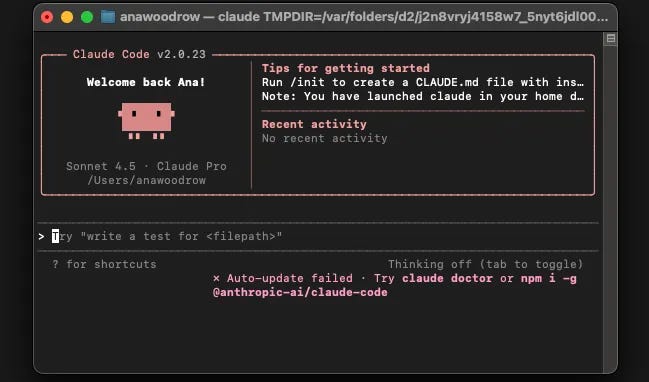
I installed Node and Claude Code (full instructions here), then ran claude in my terminal. If “terminal” sounds intimidating, it’s just a text window where you type commands - think of it as chatting with your computer. Claude Code gives you command-line access to Claude with one crucial difference: it can read and modify your local files, including system files.
Following this YouTube video, I ran Claude Code inside Cursor (a code editor) to see the folder structure and files in the same window. But you don’t need Cursor - the terminal alone works fine.
Making it even easier
If you’re feeling intimidated by the technical setup, I’ve created a simple configuration script that makes Claude Code more beginner-friendly. It tells Claude to automatically explain things in plain language, make technical decisions for you, and ask fewer questions about how to build things.
Download it, run it once, and Claude Code will be configured to work better for non-technical users. You can also use # followed by your instruction, when chatting in Claude Code to add instructions to Claude’s memory.
Project 1: Downloads folder organiser
Problem: I’m terrible at managing my Downloads folder. Every few months I select all and delete. I wanted a script that runs weekly to delete unused files and organise what remains.
Building the solution:
My prompt:
Hey Claude, I want to build a script that looks at my Downloads folder and clears it out once a week. basically if I’ve not opened a file in there for 2 weeks or it’s an installer, it should bin it. Additionally it should organise the remaining content into documents, images and other - these should all be folders under Downloads. Let me know if this all makes sense or if you need more info.
Claude starts in planning mode by default (you can toggle with Shift+Tab). It asked clarifying questions:
Permanently delete or move to Bin?
Define “not opened” as last modified, last opened, or either?
What file types count as installers?
How detailed should the logging be?
After I answered, it created an implementation plan, I approved it, and it got to work. The first manual run worked perfectly:
Summary:
- 10 files deleted (moved to Trash)
- 17 files organized into categories
- 0 errors

Files Deleted:
- 6 installer files (.dmg and .zip files including Cursor, Raycast, etc.)
- 4 files not accessed in 2+ weeks (CV, presentation, PDFs)

Files Organized:
- documents/ (9 files) - PDFs, CSV files
- images/ (7 files) - Screenshots and photos
- other/ (1 file) - .DS_Store

All deleted files are in your Trash, so you can recover them if needed. Your Downloads folder is now organized with three subfolders: documents/, images/, and other/.

The script is working perfectly! When you’re ready to set up the weekly schedule, just run the setup commands from CLAUDE.md
We hit issues scheduling with macOS’s native scheduler. Claude offered several alternatives and explained each one. I picked one that sounded familiar, Claude reconfigured everything, and the script now runs weekly. Even if none of the options had sounded familiar, I could’ve just told Claude to try something else until it worked.
Time spent: ~30 minutes from initial questions to working scheduled task (would’ve been 10-15 if we’d used cron from the start). I didn’t touch a single line of code.
Project 2: Fixing blurry external display text
Problem: Some text on my ASUS external monitor looked blurry when connected to my Macbook Air, affecting readability.
Building the solution:
My prompt:
Hey Claude, some text on my external display looks blurry, can you help me figure out why?
Claude gave me some generic troubleshooting advice, which led me to give it my exact screen model and it researched the specs, giving me this analysis:
Your monitor is 32” 1440p VA panel at 165Hz. Text blurriness is common because:
1. 32” at 1440p = lower pixel density (92 PPI)
2. VA panels have softer text than IPS
3. macOS is optimized for Retina displays
It provided detailed settings recommendations:
Enable font smoothing (with exact terminal commands)
Increase refresh rate from 72Hz to 165Hz
Adjust monitor OSD settings (sharpness, trace free, disable VividPixel)
Verify cable quality
I knew cable and display settings weren’t the issue (monitor worked fine on my PC) so I asked Claude to run the font smoothing commands, I logged out and back in, and text was noticeably sharper.
Time spent: 4 minutes from prompt to fixed.
Project 3: Portfolio website
Problem: I wanted to build a professional portfolio website to showcase my experience, something sleek and distinctive.
Building the solution:
My prompt:
Hey Claude, can you help create a beautiful portfolio website, showcasing my professional experience? I want it to be sleek, look professional, but distinctive too. Ask me any questions you need answers to for your planning. I’ve put a markdown file of my CV in the root of this working folder - please use it when populating the website (feel free to move it into an assets folder if you need to organise things better).
Claude then asked about tech stack, deployment method, and colour scheme. Technical questions included plain English explanations, so choices don’t worry too much if you don’t plan on editing the code yourself.
It took about 20 minutes to reach a first version. Claude provided several themes to choose from, instructions for theme changes, and how to run locally. I liked the first design attempt, which surprised me, given I had not given any guidance on colours or provided any reference websites. I tinkered with the theme colours a bit and fleshed out some of the text in some sections, but otherwise it was pretty spot on.
For deployment, Claude walked me through:
Creating a GitHub repository for version control
Setting up Vercel and linking to GitHub
Configuring my custom domain in Vercel
I made text edits and committed changes, but Vercel wasn’t picking up updates. I used my browser’s AI assistant (Dia) to troubleshoot and fix a configuration mismatch (just because I was already in the browser, Claude could’ve totally solved it too).
Time spent: 78 minutes from first prompt to live portfolio at anawoodrow.co.uk.
What’s next
Claude Code delivered a smooth experience across three different use cases. The local file system access makes it incredibly versatile - from diagnosing system issues to automating tasks to building applications.
Two hours. Three projects. Zero lines of code written by me.
I was particularly impressed by how well Claude Code handled the portfolio design. I expected to spend hours tweaking the layout and design, but the first attempt worked. These tools are already better than most people realise.
The AI skills gap that Katriina and Elena warned about isn’t about technical capability. It’s about repetition. The barrier isn’t complexity, it’s picking something small and starting. A messy folder. A system annoyance. A side project you’ve been putting off.
You don’t need to be a developer. You don’t need the perfect use case. You just need to try something, learn from it, and try the next thing. Every small project builds the fluency that closes the gap.
If you’re looking for support in upskilling, I’m part of Lo-Fi AI, a study group specifically focused on addressing the gender gap in AI. Follow along here for more hands-on guides. I previously wrote about building AI workflows in n8n, another accessible tool for workflow automation. Next up: Claude Skills.
I have used Claude to help me build some Apple Shortcuts. Apple Shortcuts can run scripts, allowing you to create powerful automations. I have one to sort some files, like images, into other directories. But recently, I have been using DuckDB for analytics, and I built a shortcut that converts a set of CSV files into a DB file I can then explore.
Although Claude and I are struggling to get my new site up and running, I'm sure we'll crack it.
Love the idea of /downloads/ management! I think my favorite use case for AI is what I used to spend so much time in YouTube for, troubleshooting too. Perplexity has been my goto as I try to figure out how to get my ZimaBlade to do XYZ idea I came up with and managing all of the containers with CLI. Saved me so many hours each time!